Model definition files are saved and made available to other users through the Save dialog. You can save your model locally in My Content, where access is restricted, or save it to a public or workgroup folder where content sharing authorizes other users to view or manage it.
Content sharing (defined on save or when the item is edited in its Actions Panel) is based on security roles, with predefined folders that allow role-based access. You can share your model with users who share your security roles, or you can specify the roles with which you want to share it.
Quick Modeling
When a model is built using Smart Model, Direct Model, or Model Lite, it is automatically saved. Its materialized assets, the database and the data model, are generated and stored on the specified server and the model definition file is saved to your My Content folder. When you re-open a model that was originally created in this way, it opens in Model Pro and you can save and share it as you would any other model.
Saving your Model
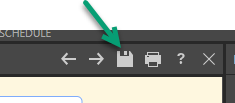
To save your model definition file, click Save above the canvas:
Alternatively, open the App Tab menu to save the model using Save, Save & Close, Save as, or Save as new version:
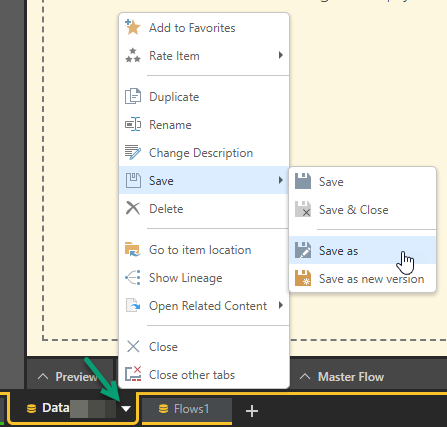
If you are saving a model for the first time in Model Pro, or you choose Save As for an existing model, you will use the Save As dialog to save your model definition file to your preferred location.
First Save Menu
If your model has not been saved before, and it was not built in a Quick Modeling tool, you may see this limited App Tabs menu:
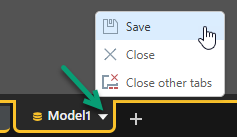
Selecting Save opens the Save As dialog.
Save As Dialog
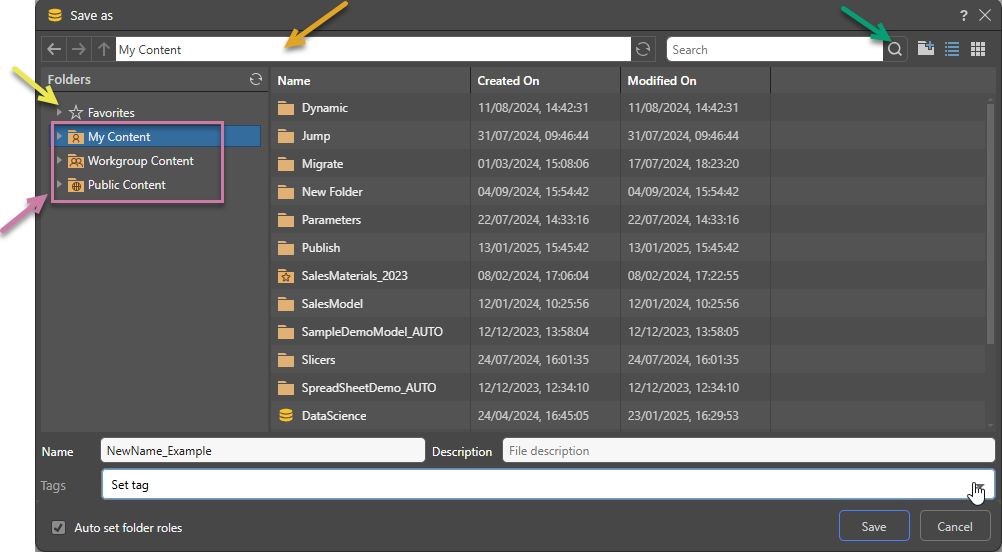
In Model Pro, this dialog is shown when you first save your model definition file and otherwise it is shown whenever you select the Save as option:
Folders
The Folders panel contains a Favorites shortcut (yellow arrow) and the folder tree (purple highlight). Navigate through the tree and select the folder that you want to save your item to.
Favorites
Use the Favorites option to access those folders that you have flagged as "Favorites." The Favorites option is not a folder; it is a shortcut that allows you to go to your most used or preferred folders without having to navigate the tree. When you access a Favorite folder in the Save dialog, you are saving the file to the location in the tree that you flagged as a favorite.
- Click here for more information about Favorites in the Content Manager
Folder Tree
You can choose where to save your content to in the folder structure. You are presented with those folders that you have WRITE access to. Once inside the folder tree, you can also access the folder navigation bar (orange arrow above) to more easily move around and add new folders to the tree on the spot (green arrow above).
- My Content: The content in this domain is private. You should save to this folder when you don't want to share your content with others yet. Note that Admins will be able to see this content.
- Workgroup Content: Group content is made READ and WRITE accessible to other users who share your security roles. Note that full write permissions are granted to users with access to the Workgroup folder.
- Public Content: Public content is made accessible to all user roles DEPENDING on the role security of the folder or item.
- Click here for more details about the folder structures
Folder Navigation
Navigate through the folder tree using:
- Mouse clicks.
- Back, forward, and up arrows.
- Search (green arrow above), which is used to find the required folder.
The current folder or item location will be reflected in the breadcrumb trail (orange arrow above).
Metadata Fields
Name
In the Name field, type the name for your model file.
Description
Add a description, which will appear in the model file's Actions Panel.
Tags
Content tags are automatically applied when saving content. You can remove them, add more, or create new ones.
Auto set folder roles
By default, Pyramid automatically sets role access to items saved in the Public Content folder. If you want to set role access to your content item manually, clear the Auto set folder roles checkbox in the Save dialog (yellow box below):

Note: In the preceding image, the field is disabled. The checkbox only becomes available when a Public Content folder is selected as the save location.
Once the checkbox is cleared (green highlight below), you can click Next (blue arrow) to assign your roles:

Assign Roles to Public Content
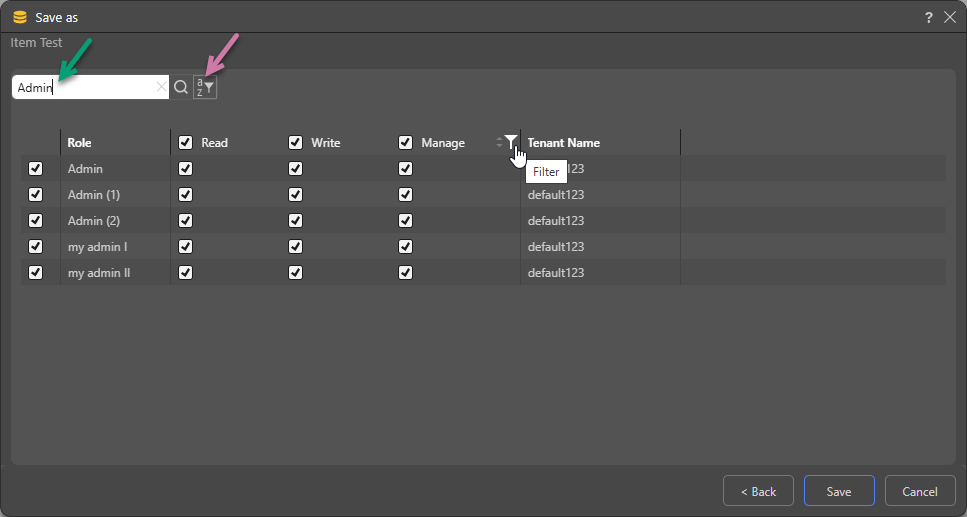
Decide which roles should have which kind of permissions to the content being saved:
- Read: Users belonging to the selected role can open the content but cannot edit it.
- Write: Users belonging to the selected role can open the content and they can edit it.
- Manage: Users belonging to the selected role can open and edit the content item, and they can manage permissions to the content item. Admins can assign any role to the Manage permission. Non-admins can only assign roles to which they belong to the Manage permission.
Tip: Given that there can be many roles, you can use Search (green arrow below) to find roles by name, use the name filter to filter them by their starting letter (purple arrow), or manage the list using the sort and filter options on the columns (shown on hover).
- Click here to learn about assigning roles to items during Save
- Click here to learn about assigning roles to the model file in the Content Manager
Closing Unsaved Items
You can close items at any time without saving them to the content system. When you close the unsaved item, you are prompted with a warning dialog:
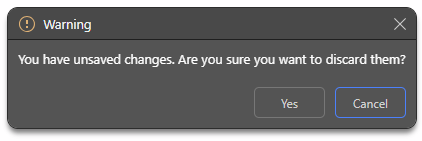
- Click Yes to close the app and discard any unsaved changes.
- Click Cancel to continue working.